
Apple Pay

Make Payments Swiftly and Safely


Enjoy all the benefits of your Habib Bank AG Zurich Cards with Apple Pay on your iPhone, Apple Watch, iPad, and Mac. Apple Pay is an easy, secure and private way to pay with your Apple devices.
Use Apple Pay wherever you see one of these symbols.
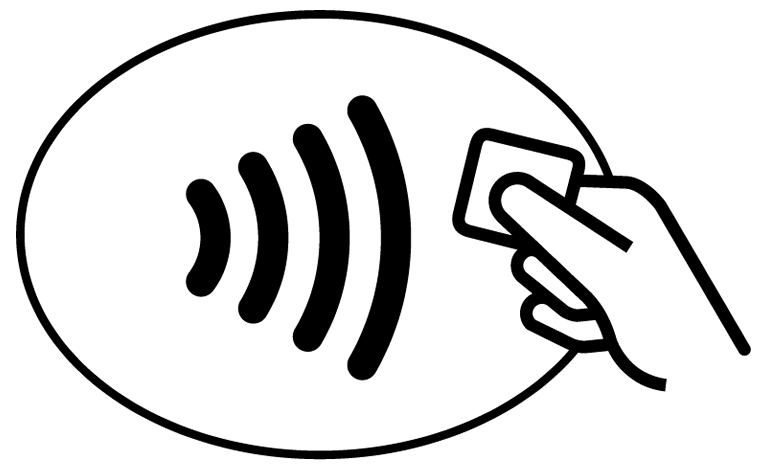
Contactless Apple Pay
 Contactless Symbol    Apple Pay

More Secure Payments


With Apple Pay, your Habib Bank AG Zurich card number is not stored on your device or Apple servers. When you make a purchase, it is never shared by Apple with merchants. Hence, not sharing your card number offers an additional level of protection against misuse.

Useful Information

  • Easy, secure and private way to pay
  • Simpler than using your physical card
  • Works with all Apple devices
  • Offers contactless and secure purchases in stores, in apps, and online
  • iPhone, iPad, Apple Watch, Apple Vision Pro and Mac
  • A valid Habib Bank AG Zurich Debit Card

Adding your Habib Bank AG Zurich card(s) to Apple Pay is simple. Here is how to get started:


iPhone


  • Open the Wallet app
  • Tap the “+” sign in the upper-right corner
  • Enter your card’s security code to add your credit or debit card affiliated with your iTunes account, or, select ‘Add a different card,’ and use your iPhone camera to scan the card information


Apple Watch


  • Open the Apple Watch app on your iPhone
  • Tap ‘Wallet & Apple Pay’ and select ‘Add Credit or Debit Card’
  • Enter your card’s security code to add your credit or debit card affiliated with your iTunes account, or, select ‘Add a different card,’ and use your iPhone camera to scan the card information


iPad


  • Go to Settings
  • Tap ‘Wallet & Apple Pay’ and select ‘Add Credit or Debit Card’
  • Enter your card’s security code to add your credit or debit card affiliated with your iTunes account, or, select ‘Add a different card,’ and use your iPad camera to scan the card information


MacBook Pro with Touch ID


  • Go to System Preferences
  • Select ‘Wallet & Apple Pay’ and select ‘Add Card’
  • Enter your card’s security code to add your credit or debit card affiliated with your iTunes account, or, select ‘Add a different card,’ and use your MacBook Pro camera to scan the card information


How to Add HBZ Card to Apple Pay – Tutorial Video


WATCH HOW TO ADD HBZ CARD

Making payments with Apple Pay, through your Habib Bank AG Zurich Card, is simple and safe. Here is how the payment is done:

Paying in stores


  • iPhone in Store — To pay in store, double-click the side button from your locked iPhone screen or while using any app. Then authenticate with Face ID, Touch ID or your passcode, and hold your device near the reader.
  • Apple Watch in Store — To check out in-store, double-click the side button of your Apple Watch and hold your device near the reader.

Paying in Apps and Online


To pay online or in apps, look for the Pay button. Tap it, confirm your info, and authenticate with Face ID, Touch ID or your passcode. It’s that easy.

How to Pay in Shops Using Face ID – Tutorial Video


WATCH HOW TO PAY USING FACE ID

Other Options

Google Pay

Use your Android device to pay in a contactless and secure manner.

Samsung Wallet

Make online and offline payments faster and easier with Samsung Wallet.

[wpdreams_ajaxsearchlite]